 Download for Google Chrome
 Download for Edge
 Download for Firefox
How to install the accessibility widget in Magento
The DockAccess Accessibility Widget module adds the accessibility widget to every storefront page of Magento Open Source, Adobe Commerce and Mage-OS (2.4.4 or later). Once connected to your DockAccess account, it shows in the Magento admin whether the widget works, your plan and how many widget views were used this month. The look of the widget, its accessibility options and the accessibility statement are set in your DockAccess account, on the Accessibility widget tab of the site.
Installing the module
Step 1: Add the site and copy its token
You can also find the token of every site later in “My sites”, under the address of the site, with a copy icon.
Step 2: Install the module
Download the module (dockaccess_widget.zip) and unpack it into app/code/DockCodes/DockAccessWidget of your Magento installation. Then, in the Magento directory, run:
If the shop runs in production mode, run bin/magento setup:di:compile and bin/magento setup:static-content:deploy before clearing the cache. Installing a module needs access to the server (SSH); if you do not have it, ask whoever looks after your shop.
Step 3: Connect the shop with your DockAccess account
In the Magento admin, open Content → DockAccess → Accessibility Widget. In the Connect this shop with dockaccess.org section, paste the site token, enter the e-mail address (or user name) and the password of your DockAccess account, then click Connect.
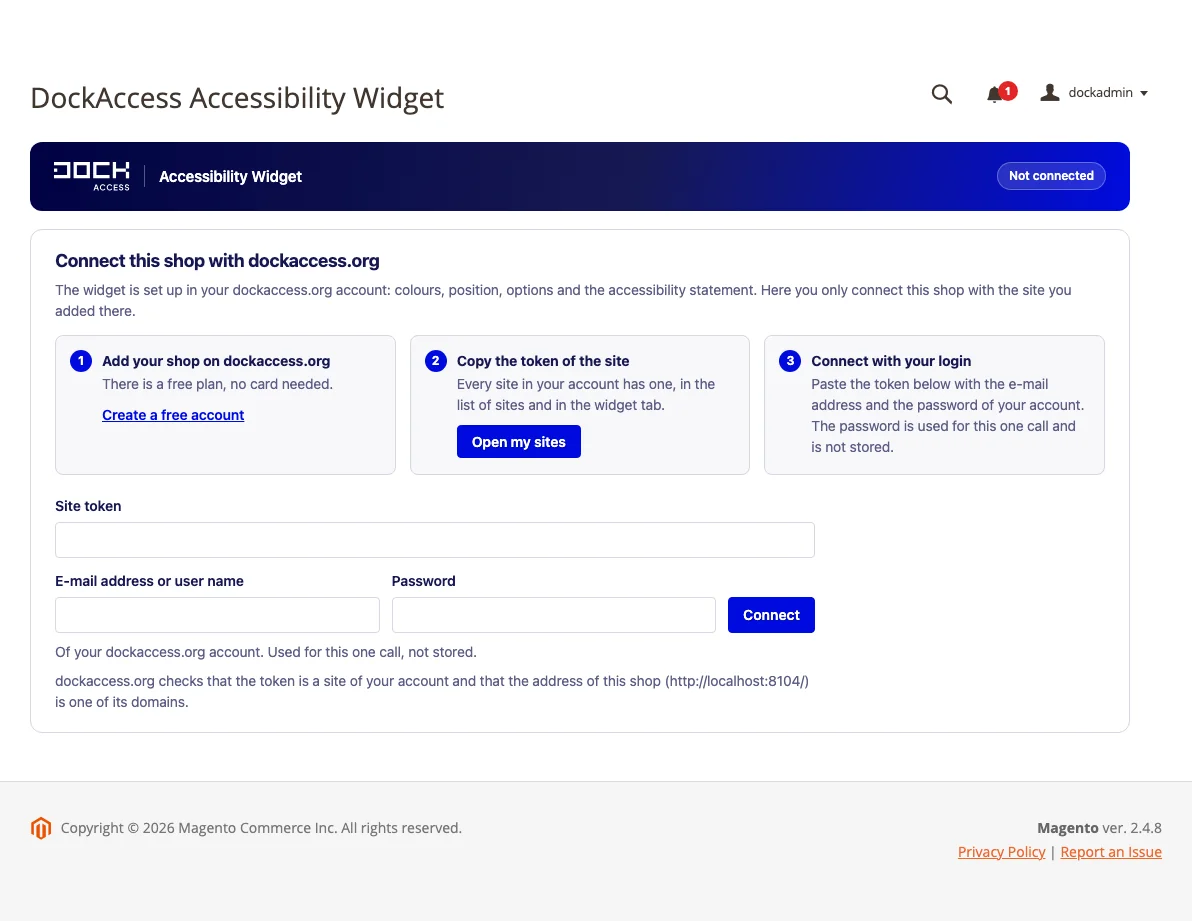
DockAccess checks that the token belongs to your account and that the address of the shop is one of the site's domains. The password is used only for this one connection and the module does not store it. The account must have a confirmed e-mail address.
If the module says that the shop address is not one of the site's domains, add it in the site settings on the My sites list and connect again.
Step 4: Check that the widget works
After connecting, the module screen shows:
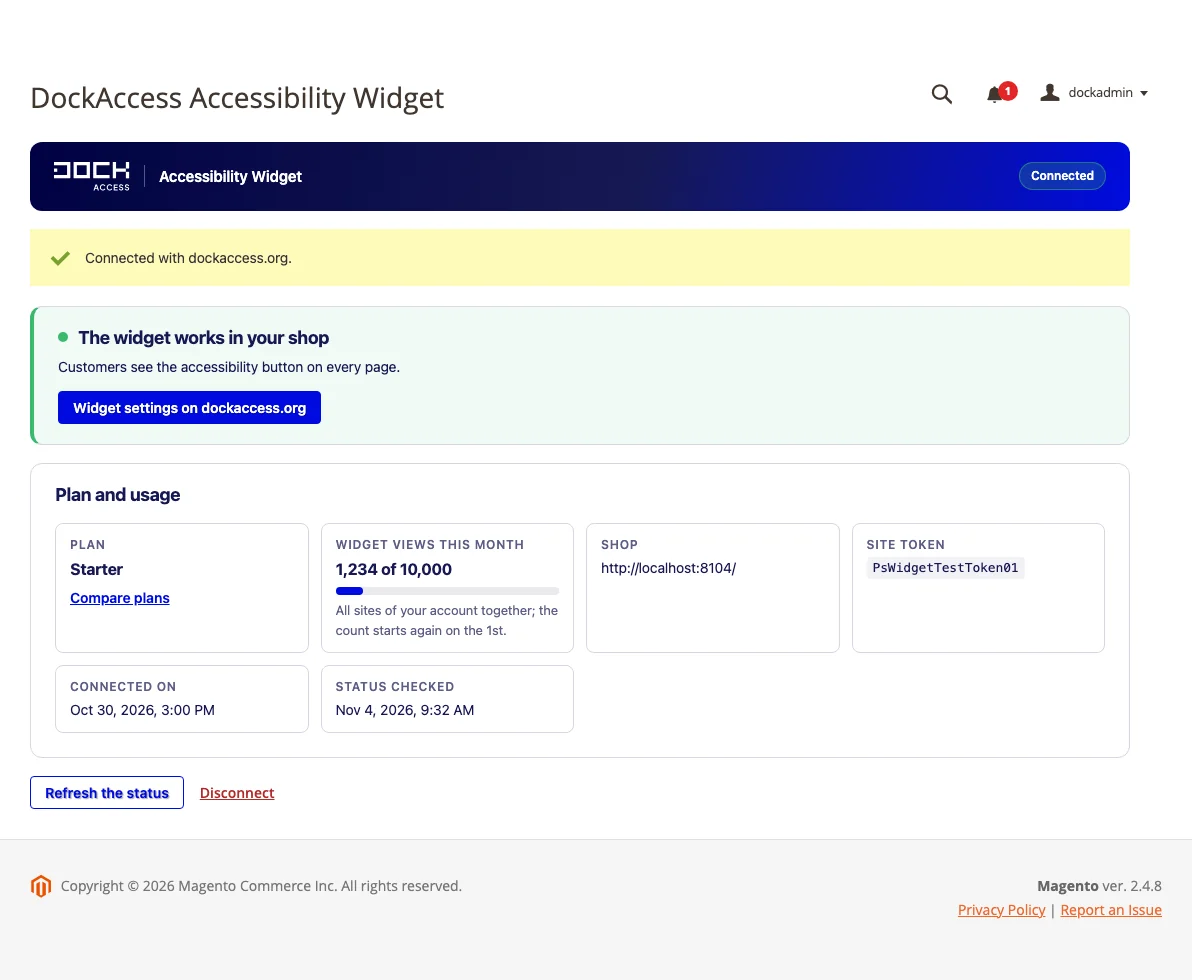
The module refreshes the status once a day through Magento's cron. The Refresh the status button gets it straight away. If the widget stops working (switched off, paused by the plan or out of views for this month), Magento shows a system message at the top of the admin.
Finally, open your shop in a browser and check that the accessibility widget button is visible.
Several websites
Each Magento website usually has its own domain, so it is a separate site in your DockAccess account with its own token. With more than one website, choose it at the top of the module screen and connect each one separately.
Checkout and the Content Security Policy
Since Magento 2.4.7, the checkout pages enforce the Content Security Policy. The module adds dockaccess.org to the allowed sources, so the widget also works where customers pay. If your shop has its own, stricter policy, allow https://dockaccess.org for scripts, styles, fonts, images and connections.
Disconnecting and removing the module
The Disconnect button on the module screen ends the connection with your DockAccess account. The widget keeps working in the shop. To see its status again, connect the shop again.
To remove the module, run bin/magento module:uninstall --non-composer DockCodes_DockAccessWidget (it disconnects the shop and deletes the saved tokens), then bin/magento module:disable DockCodes_DockAccessWidget, delete the app/code/DockCodes/DockAccessWidget directory and run bin/magento setup:upgrade.
Adding the widget without the module
If you cannot install modules, you can add the widget code in the Magento admin.
Step 1: Add the site and copy its token
You can also find the token of every site later in “My sites”, under the address of the site, with a copy icon.
Step 2: Paste the code into the page head
Copy the code below and replace _TOKEN_ with your site token:
The same code, with your token already in it, is on the Accessibility widget tab of the site in your DockAccess account. Read more about the widget code in the script documentation.
In the Magento admin, open Content → Design → Configuration, edit the website or store view, expand HTML Head and paste the code into Scripts and Style Sheets. Click Save Configuration and clear the cache in System → Cache Management.
Without the module, the checkout pages may block the widget because of the Content Security Policy, and the admin does not show the widget status. The module is the more convenient choice.
Step 3: Check the shop
Open the shop in a browser and check that the accessibility widget button is visible and its features work.
Related posts
- How to install the accessibility widget in Joomla
- Accessibility widget script
- How to install the accessibility widget in MODX
- How to install the accessibility widget in Prestashop
- How to install the accessibility widget in Wordpress
Still looking for answers?
Ask our experts using online chat