 Download for Google Chrome
  Download for Edge
  Download for Firefox
 How to install the accessibility widget using Google Tag Manager
Step 1: Register your site and obtain a token
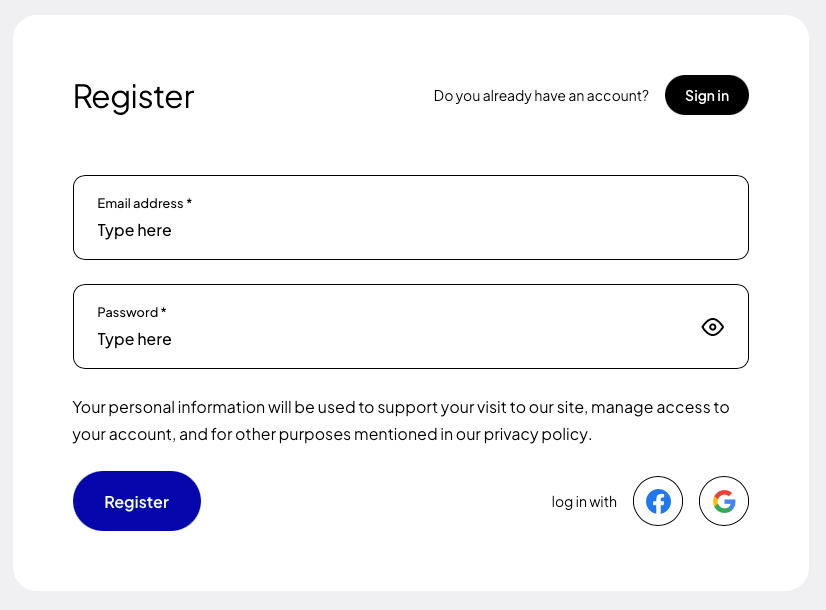
If you are installing the plugin for the first time, register (opens in a new tab) using Google, Facebook, GitHub or your own e-mail address and password.
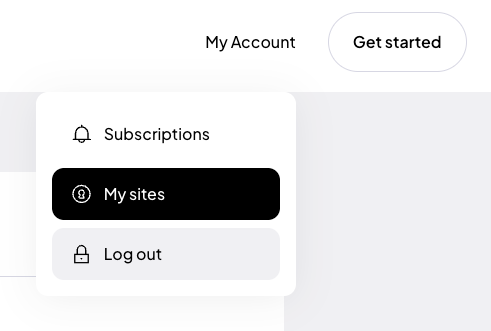
After creating an account, go to the “My sites” tab and click the “Add site” (opens in a new tab) button.
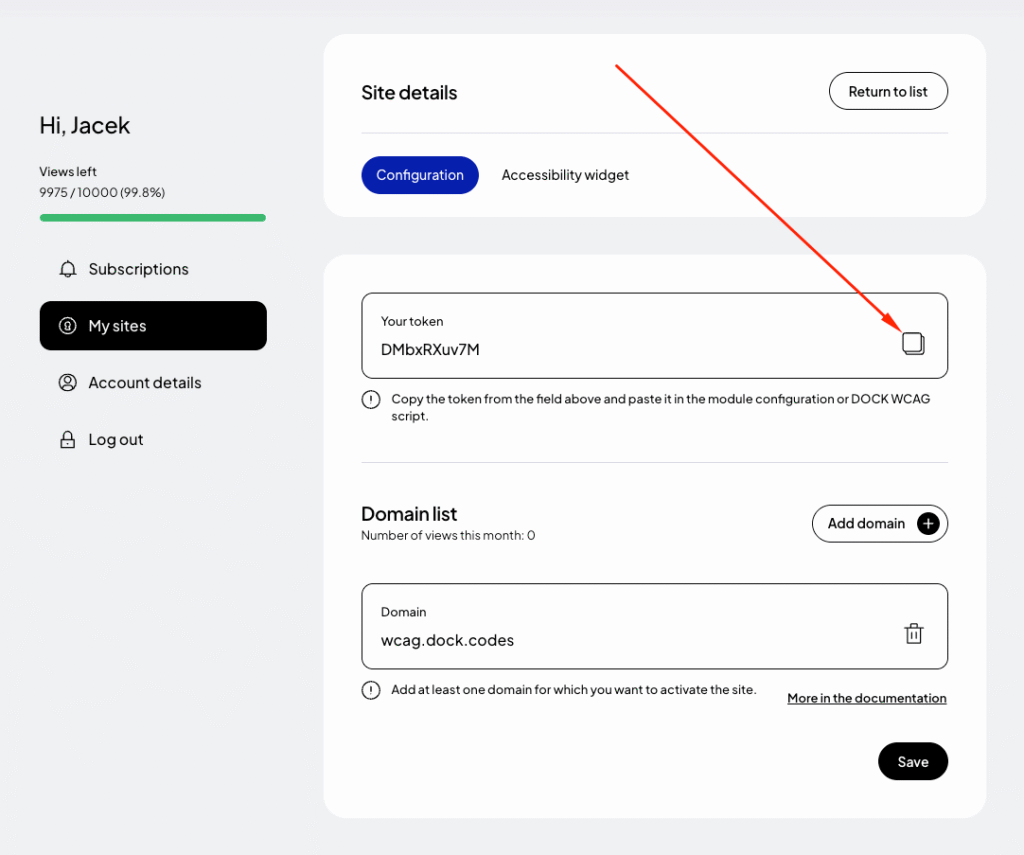
In the form for adding a new site, enter the addresses of the websites where you want to use the token. If your site runs on a domain such as example.com and also www.example.com, add both addresses. Read more about this in the documentation (opens in a new tab).
Finally, click “Save” and copy the generated token from the “Your token” field.
Step 2: Adding the DockWCAG widget using GTM
1. Log in to Google Tag Manager
Go to https://tagmanager.google.com/ and select the appropriate container for your website.
2. Add a new tag
Click the “Add new tag” button.
3. Select the tag type – Custom HTML
4. Paste the widget code
Paste the following code into the HTML editing field and replace _TOKEN_ with your unique token generated in the previous step:
5. Set the startup trigger
Click on the “Triggering” field and select the “All Pages” rule so that the widget loads on every subpage.
6. Save and publish
Click “Save,” then ‘Submit’ and “Publish” to publish your changes to GTM.
Step 3: Preview the site
After adding the script, test your site to make sure the widget is properly installed and works as expected. Check all the widget's functions to verify that the installation was successful.Related posts
- How to install the accessibility widget in Joomla
- Accessibility widget script
- How to install the accessibility widget in MODX
- How to install the accessibility widget in Prestashop
- How to install the accessibility widget in Wordpress
Still looking for answers?
Ask our experts using online chat