 Download for Google Chrome
  Download for Edge
  Download for Firefox
 How to install the accessibility widget in MODX
Plugin installation
Step 1: Register your site and obtain a token
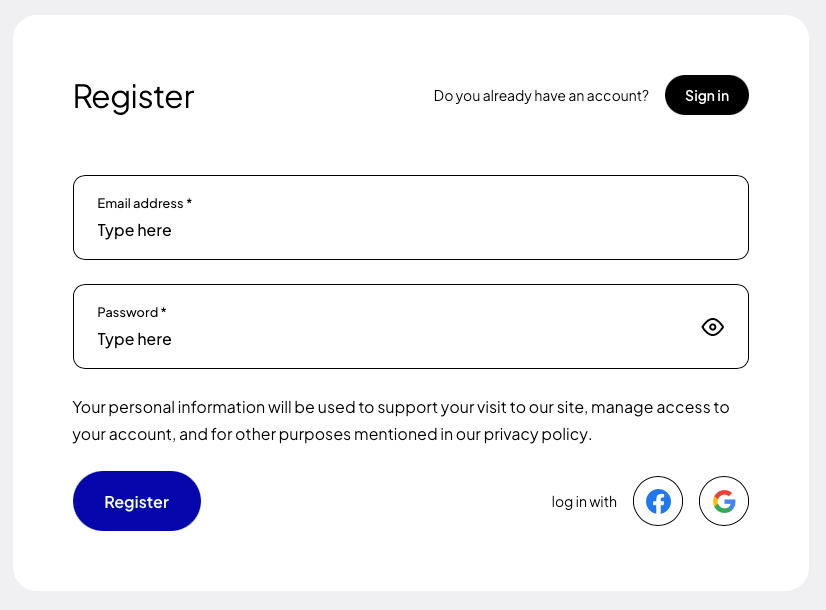
If you are installing the plugin for the first time, register (opens in a new tab) using Google, Facebook, GitHub or your own e-mail address and password.
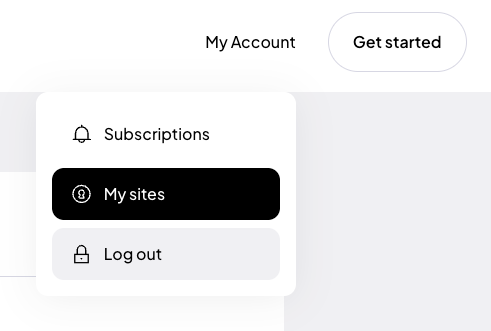
After creating an account, go to the “My sites” tab and click the “Add site” (opens in a new tab) button.
In the form for adding a new site, enter the addresses of the websites where you want to use the token. If your site runs on a domain such as example.com and also www.example.com, add both addresses. Read more about this in the documentation (opens in a new tab).
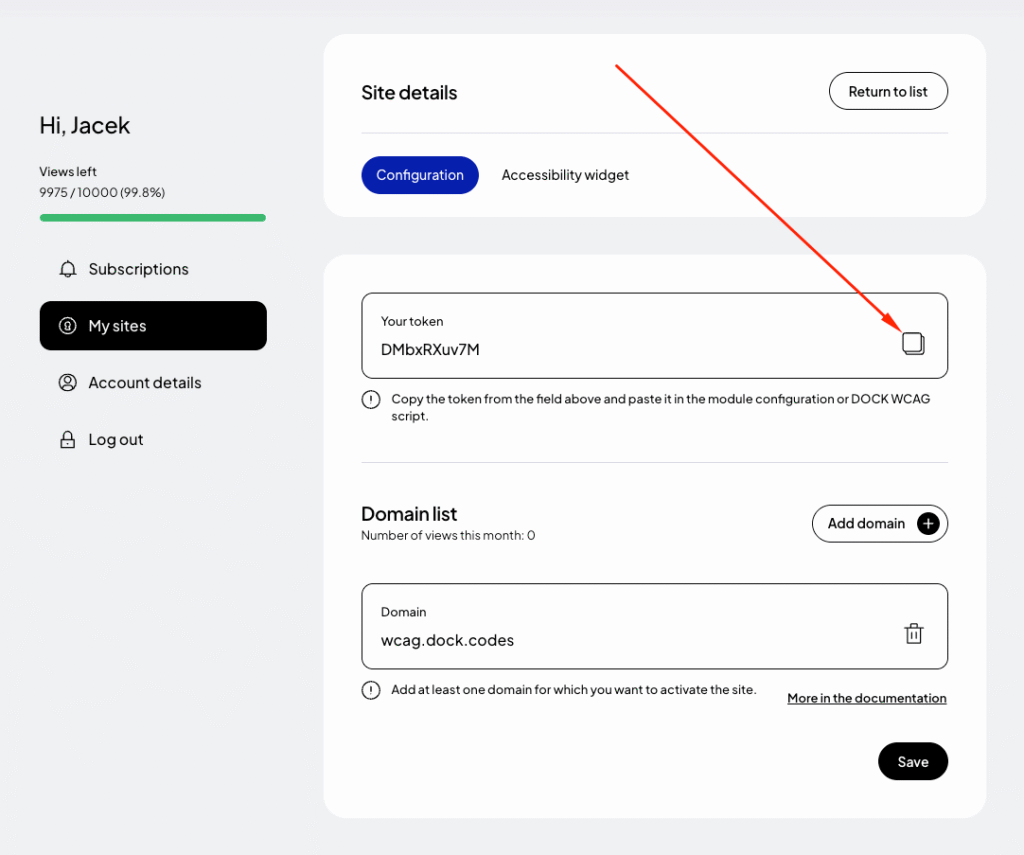
Finally, click “Save” and copy the generated token from the “Your token” field.
Step 2: Adding the DockWCAG plugin in MODX
To add a plugin in MODX, go to the "Elements" tab, then "Plugins" and click the add plugin button. Give a name e.g. "Assist For WCAG", and in the Plugin Code (PHP) field paste the following code:<?php
function loadAccessibility($token)
{
$html = "<script>";
$html .= "(function (d, s, t) {";
$html .= "var f = d.getElementsByTagName(s)[0],";
$html .= "j = d.createElement(s),";
$html .= "a = new Date().getTime();";
$html .= "j.async = true;";
$html .= "j.src = '//dockaccess.org/accessibility/' + t + '/start.js'";
$html .= "f.parentNode.insertBefore(j, f);";
$html .= "})(document, 'script', '".urlencode($token)."');";
$html .= "</script>";
return $html;
}
$modx->regClientHTMLBlock(loadAccessibility('_TOKEN_'));
For more on how to configure the widget, see the documentation (opens in a new tab).
Paste code and replace _TOKEN_ with your unique token that was generated in the previous step.
Finally, in the "System Events" tab, check "OnWebPageInit" and click "Save."