 Download for Google Chrome
  Download for Edge
  Download for Firefox
 How to install the accessibility widget in Webflow
Plugin installation
Step 1: Register your site and obtain a token
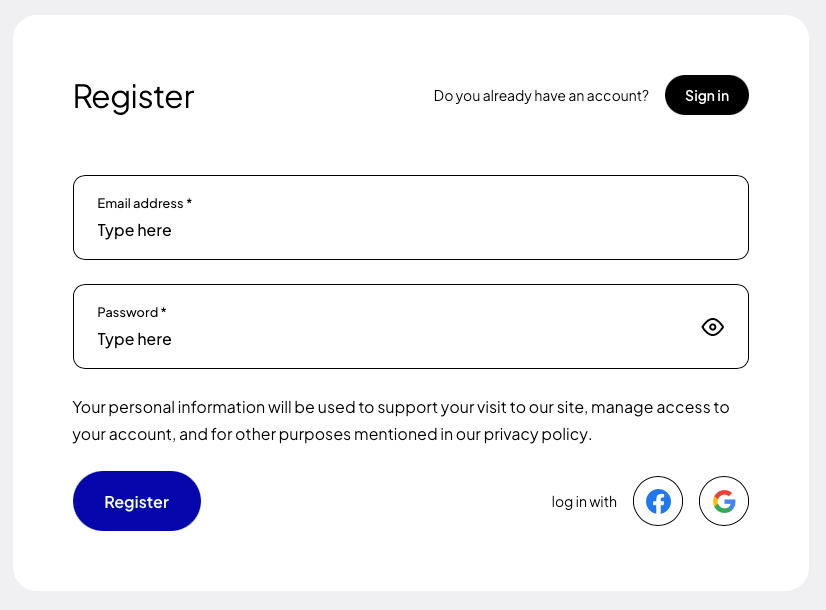
If you are installing the plugin for the first time, register (opens in a new tab) using Google, Facebook, GitHub or your own e-mail address and password.
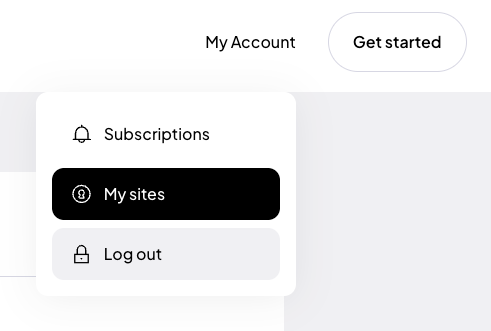
After creating an account, go to the “My sites” tab and click the “Add site” (opens in a new tab) button.
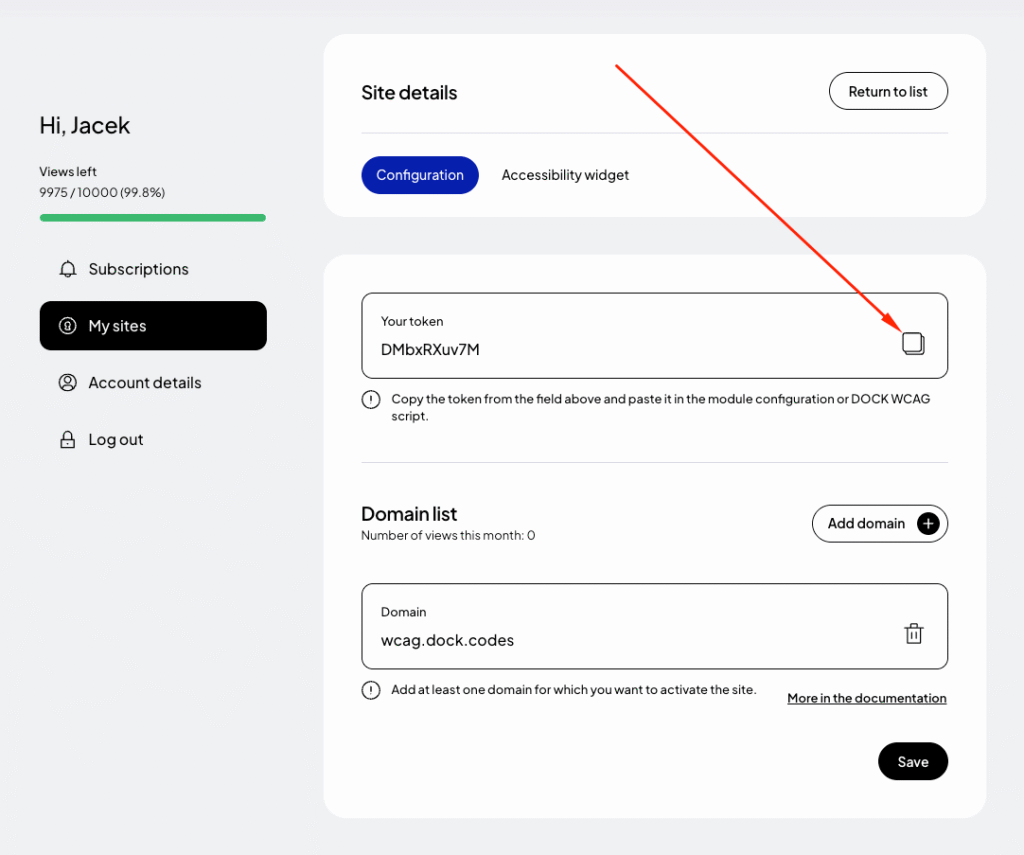
In the form for adding a new site, enter the addresses of the websites where you want to use the token. If your site runs on a domain such as example.com and also www.example.com, add both addresses. Read more about this in the documentation (opens in a new tab).
Finally, click “Save” and copy the generated token from the “Your token” field.
Step 2: Adding the DockWCAG widget in Webflow
To add a widget in Webflow, go to the list of pages, then from the context menu next to the page, click "Settings." Then go to the "Custom Code" tab And in the "Footer Code" field, paste the following code:Paste code and replace _TOKEN_ with your unique token that was generated in the previous step. For more on how to configure the widget, see the documentation (opens in a new tab).